How to Convert iPhone Photos (HEIC) to JPG, PNG, or WebP

You took a batch of photos on your iPhone, transferred them to your Windows PC, and now nothing can open them. The file extension says .heic and Windows Photo Viewer has no idea what to do with it. You try to upload one to a website form and get "unsupported file type." You email the photo to a client and they reply: "I can't open this."
This is the single most common image compatibility problem people run into today, and it has a simple explanation and a simple fix. Your iPhone saves photos in a format called HEIC. Most of the world still expects JPG. This guide covers what HEIC actually is, why Apple uses it, when you should convert, and how to batch convert your entire photo library in seconds without installing anything.
Need to convert HEIC photos right now? No sign-up, no upload to any server.
Convert HEIC to JPG Free →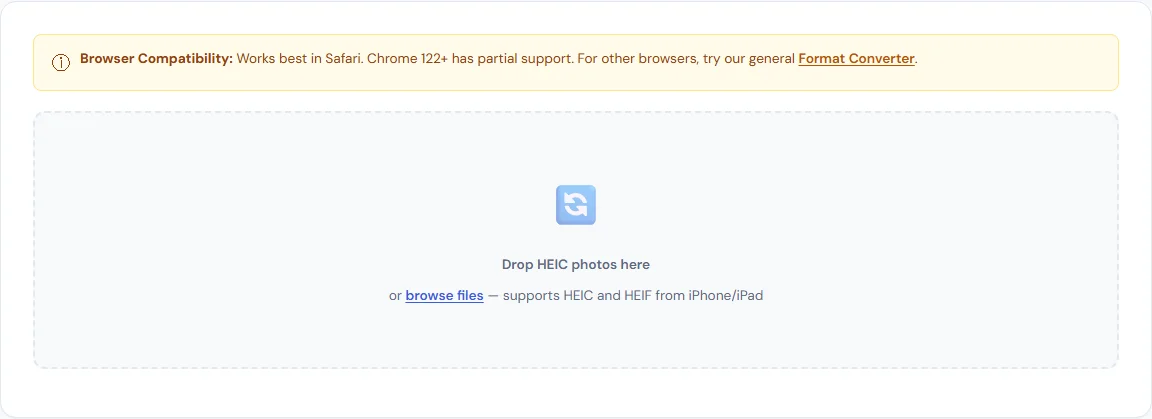
What Is HEIC?
HEIC stands for High Efficiency Image Container. It is the file format Apple adopted in 2017 with iOS 11 as the default photo format for iPhones and iPads. The underlying compression technology is called HEIF (High Efficiency Image Format), which is based on the same video codec used in modern 4K streaming.
In practical terms, HEIC does two things better than JPG:
- Smaller files. A HEIC photo is roughly 40-50% smaller than an equivalent-quality JPG. A 4 MB JPG becomes a 2 MB HEIC with no visible difference. On a 128 GB iPhone, that means thousands of extra photos before you run out of storage.
- Better quality at the same size. At any given file size, HEIC preserves more detail, fewer compression artifacts, and better color accuracy than JPG. It supports 10-bit color depth (over a billion colors) compared to JPG's 8-bit (16.7 million colors).
HEIC also supports features that JPG cannot: transparency, image sequences (like Live Photos), and depth maps. Apple had good technical reasons to switch.
Why HEIC Causes Problems
The format is technically superior, but adoption outside of Apple's ecosystem has been slow. Here is where you will run into issues:
- Windows. Windows 10 and 11 can display HEIC files if you install the free HEIF Image Extensions from the Microsoft Store — but many users don't know this exists, and it doesn't help with third-party apps that still reject the format.
- Web uploads. Most website forms, CMS platforms, and social media upload fields expect JPG, PNG, or WebP. Try uploading a .heic file to a WordPress media library, an Etsy listing, or a job application form, and it will be rejected.
- Email and messaging. While iMessage and AirDrop handle HEIC natively between Apple devices, emailing a HEIC file to someone on Android or Windows often results in an unopenable attachment.
- Older software. Photoshop, Lightroom, and GIMP all support HEIC now, but older versions do not. Free image viewers, bulk rename tools, and batch processors often still lack HEIC support.
- Printing services. Online print shops (Shutterfly, Snapfish, Costco Photo) typically require JPG or PNG uploads. HEIC files are rejected at the upload step.
The bottom line: if you're keeping photos on your iPhone and sharing within Apple's ecosystem, HEIC is great. The moment you need to send photos anywhere else, you need to convert.
How to Convert HEIC to JPG (Step by Step)
The fastest way to convert HEIC files is with a browser-based tool that processes everything locally on your device. No upload, no account, no software to install. Here is how:
- Open the converter. Go to the HEIC to JPG Converter.
- Drop your files. Drag HEIC files from your desktop or file explorer into the drop zone. You can also click to browse. The tool accepts both .heic and .heif files and supports batch conversion — drop 50 files at once if you need to.
- Set quality. The default JPG quality is 92%, which is visually lossless for photographs. If you need smaller files (for web or email), try 80-85%. If you need archival quality, keep it at 95-100%.
- Convert and download. Hit Convert, then download individual files or all at once. Your original HEIC files are untouched — the tool creates new JPG copies.
The entire process happens in your browser. Your photos never leave your device, which matters if you're converting personal photos, client work, or anything sensitive.
When to Convert to PNG or WebP Instead of JPG
JPG is the safe default — it works everywhere. But depending on what you're doing with the converted photo, a different format might be better.
Convert to PNG when:
- You need a lossless copy with zero quality degradation (archival purposes)
- The image has text overlays, screenshots, or sharp graphic elements
- You need transparency (HEIC supports it, JPG does not, PNG does)
- You plan to edit the image further — PNG won't introduce additional compression artifacts with each save
Convert to WebP when:
- The photos are destined for a website — WebP files are 25-35% smaller than JPG at equal quality
- You're optimizing for page speed and Core Web Vitals
- Your CMS or platform supports WebP (WordPress, Shopify, Squarespace, and most modern platforms do)
You can use the Format Converter or Smart Image Converter to convert between any combination of formats. For specifically converting to WebP, the JPG to WebP converter is optimized for that workflow.
How to Stop Your iPhone from Saving HEIC
If you'd rather avoid the conversion step entirely, you can tell your iPhone to shoot in JPG instead of HEIC. Here is how:
- Open Settings on your iPhone
- Scroll down to Camera
- Tap Formats
- Select Most Compatible (instead of "High Efficiency")
This switches your camera to save photos as JPG and videos as H.264 MOV. The tradeoff is real: your photos will take up roughly twice as much storage space. On a 256 GB iPhone this is probably fine. On a 64 GB or 128 GB model, you may feel the pinch.
A middle-ground approach: keep shooting in HEIC (better quality, smaller files on your phone) and convert to JPG only when you need to share or upload. This gives you the best of both worlds.
Automatic Conversion When Transferring
Apple actually built in an automatic conversion option, but it's buried in Settings:
- Open Settings > Photos
- Scroll to Transfer to Mac or PC
- Select Automatic (instead of "Keep Originals")
With this set to "Automatic," your iPhone will convert HEIC to JPG on the fly when you transfer photos via USB cable. This works for USB transfers but does not apply to AirDrop, iCloud Photo Library, or email attachments — for those, you still need a converter.
Batch Converting Large Photo Libraries
If you have hundreds or thousands of HEIC files — a vacation photo dump, a wedding, a product shoot — batch conversion is essential. Here is an efficient workflow:
- Convert format. Drop all your HEIC files into the HEIC to JPG Converter. The batch processor handles them all at once.
- Resize if needed. If the photos are going on a website, resize them to your target dimensions with the Image Resizer. Most web images don't need to be wider than 1200-1600px.
- Compress for web. Run the resized JPGs through the Image Compressor at 78-85% quality to squeeze out another 40-60% in file size.
- Strip metadata. If you're publishing the photos online and don't want GPS coordinates, camera serial numbers, or timestamps embedded in the files, use the EXIF Remover. This is especially important for personal photos shared publicly.
This four-step pipeline converts, resizes, compresses, and cleans your photos. A batch of 100 iPhone photos (roughly 200 MB in HEIC) typically ends up around 15-30 MB in optimized JPG — ready for web, email, or print.
HEIC vs AVIF — What's the Difference?
You may have heard of AVIF, another modern image format. Both HEIC and AVIF are technically superior to JPG, but they serve different roles:
- HEIC is primarily a camera capture format. Apple iPhones and some Android phones use it. It is not widely supported on the web — most browsers cannot display .heic files natively.
- AVIF is a web-first format based on the AV1 video codec. Chrome, Firefox, and Safari all support it. AVIF achieves roughly 50% smaller files than JPG with better quality. If you're converting HEIC photos for a website, consider converting to AVIF for maximum compression.
For most people, JPG remains the pragmatic choice — it works literally everywhere. WebP is the best balance of size and compatibility for web use. AVIF is for performance-focused sites where every kilobyte matters.
Frequently Asked Questions
Can I convert HEIC to JPG without losing quality?
Yes. At JPG quality 92-100%, the conversion is visually lossless — you will not see any difference between the HEIC original and the JPG output. The JPG file will be slightly larger than the HEIC since JPG uses an older, less efficient compression method. For a truly lossless copy, convert to PNG instead.
Why does my iPhone save photos as HEIC instead of JPG?
Apple switched to HEIC in 2017 because it produces files roughly half the size of JPG at the same visual quality. This saves significant storage space on your phone. You can change this in Settings > Camera > Formats by selecting "Most Compatible."
Is HEIC the same as HEIF?
HEIF (High Efficiency Image Format) is the underlying standard. HEIC (High Efficiency Image Container) is the specific file extension Apple uses. They refer to the same technology. Some cameras and Android phones use the .heif extension instead of .heic — both can be converted with the same tools.
Do I need to install anything to convert HEIC files?
No. Browser-based converters process HEIC files entirely on your device using your browser's built-in capabilities. No software, plugins, or extensions needed. Just open the tool, drop your files, and download the converted copies.
Can I batch convert hundreds of HEIC files at once?
Yes. The SmarterSources HEIC to JPG converter supports batch processing — select or drag multiple files and they all convert together. For very large batches (500+), processing in groups of 50-100 is faster since your browser can handle them without slowing down.
BLIPP built SmarterSources to replace expensive subscriptions with free, private tools. Every tool runs in your browser — no sign-ups, no limits.