How to Convert Video to GIF with Meme Text — Free Browser Tool

GIFs are everywhere. Group chats, Slack channels, social media replies, product demos, bug reports. They loop automatically, play without sound, and work on every platform. But if you have ever tried to make one from a video clip, you know the drill: upload your video to some website, wait for it to process on their server, get a watermarked result, and then get asked to pay to remove the watermark.
We built a Video to GIF Converter that skips all of that. It runs entirely in your browser. Your video never gets uploaded anywhere. And it includes a meme text feature so you can add captions directly into the GIF frames.
Want to make a GIF right now? The tool converts any video with trimming and meme text.
Convert Video to GIF →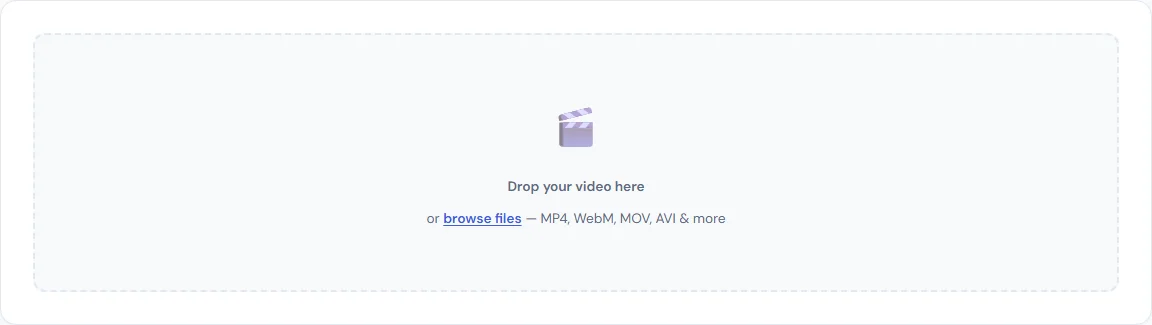
What This Tool Does
The converter takes any video file and turns it into an animated GIF. Here is what makes it different from most online converters:
- 100% client-side. Your video never leaves your device. All frame extraction and GIF encoding happens in your browser using HTML5 Canvas and Web Workers.
- Trim before converting. Drag the start and end handles on the timeline to select exactly the clip you want. No need to trim the video separately first.
- Meme text overlay. Add classic white Impact font text (with black outline) to the top and bottom of your GIF. The text gets baked into every frame.
- Adjustable settings. Control output width, frame rate (FPS), and quality to balance visual quality against file size.
- Live preview. See your trimmed clip with meme text overlaid before converting. Play it back to check timing.
- No watermarks, no sign-ups, no limits.
Supported Video Formats
The tool accepts any video format your browser can decode:
- MP4 (H.264) — works in all modern browsers. This is the universal format.
- WebM (VP8/VP9) — works in Chrome, Firefox, and Edge. Common on Reddit and web platforms.
- MOV — iPhone's native format. Works in Safari and most modern browsers, including HEVC/H.265 encoded videos.
- AVI, M4V, MKV, OGV, 3GP — supported to varying degrees depending on your browser.
If you have a video from your iPhone, a TikTok download, a screen recording, or a clip from any social media platform, it will almost certainly work. If your browser cannot decode a particular codec, the tool shows a clear error message suggesting you try MP4 or a different browser.
How to Convert a Video to GIF
Here is the step-by-step process:
1. Upload Your Video
Drag and drop a video file onto the tool, or click to browse. The tool loads the video locally and shows the first frame on a preview canvas.
2. Trim the Clip
Use the timeline handles to set your start and end points. The tool defaults to the first 15 seconds of the video to prevent accidentally converting a 10-minute file into a massive GIF. The duration display updates in real-time as you drag.
3. Add Meme Text (Optional)
Type your top text and bottom text in the input fields. The text appears immediately on the preview canvas in classic meme style: white Impact font with a thick black outline. Adjust the font size slider to get the right look. The text wraps automatically if it is too wide for the frame.
4. Adjust Settings
Three settings let you balance quality and file size:
- Output Width — Default is 480px. Lower this to 320px or 240px for smaller files. The height scales proportionally.
- FPS (Frames Per Second) — Default is 10. This is smooth enough for most GIFs. Going to 15-20 makes motion smoother but doubles or triples the file size. 5-8 FPS works fine for simple reactions.
- Quality — Controls the color quantization in the GIF encoder. Lower values produce better color accuracy but larger files. The default of 10 is a good balance.
The estimate bar shows the expected frame count and approximate file size before you start converting.
5. Preview
Click Play to watch your trimmed clip loop on the canvas with your meme text overlaid. This is exactly what the final GIF will look like.
6. Convert
Click "Convert to GIF" and watch the progress bar. The tool extracts frames one by one, draws each frame with meme text onto the canvas, and feeds them to the GIF encoder running in Web Workers. When encoding finishes, your GIF appears as a preview with a download button.
7. Download
Click download to save your GIF. The filename follows the pattern originalname-SmarterSources.gif.
Tips for Smaller GIF Files
GIF is an old format that was never designed for video. Each frame is stored as a separate image, so file sizes add up fast. Here are practical ways to keep your GIFs manageable:
- Keep clips short. 3-5 seconds is the sweet spot for reaction GIFs and memes. Every extra second adds frames.
- Lower the width. A 320px wide GIF is perfectly usable in chats and social media. Going from 480px to 320px can cut file size in half.
- Reduce FPS. 8-10 FPS looks fine for most content. You do not need 30 FPS in a GIF. Dropping from 15 to 10 FPS removes a third of the frames.
- Trim aggressively. Cut to exactly the moment you need. A 2-second GIF at 10 FPS is only 20 frames.
- Compress after converting. If your GIF is still too large, run it through the GIF Compressor to scale it down, reduce colors, or skip frames for an even smaller file.
A 3-second clip at 320px wide and 10 FPS produces a GIF that is typically under 1 MB. That is small enough for almost any platform.
When to Use GIF vs Video
GIFs are ideal when you need something that:
- Loops automatically without a play button
- Works in places where video embeds are not supported (email, forums, chat apps)
- Is short and self-contained (reactions, memes, quick demos)
- Does not need sound
If your clip is longer than 10-15 seconds, has important audio, or needs to be high resolution, keep it as a video. GIF was designed for short, looping, silent animations, and that is where it works best.
How It Works Under the Hood
For the technically curious, here is what happens when you click Convert:
- The tool calculates the frame times based on your start/end points and chosen FPS.
- For each frame, it sets the HTML5 video element's
currentTimeproperty and waits for the browser'sseekedevent. - Once the video frame is ready, it draws it onto an HTML5 Canvas at your chosen output width.
- If you added meme text, it draws the text on top of the video frame using Canvas text rendering.
- The canvas pixel data gets copied and sent to gif.js, a JavaScript GIF encoder that runs in Web Workers.
- After all frames are captured, gif.js encodes them into a GIF binary blob with proper frame delays.
- The finished blob becomes a downloadable file.
The entire process happens in your browser. No server is involved at any step. The gif.js library handles the actual GIF encoding using the LZW compression algorithm in a separate thread so the page stays responsive during processing.
Get Started
Open the Video to GIF Converter, drop a video, trim it, add your meme text, and download the result. If the result is too large for your needs, run it through the GIF Compressor to shrink it further. No account needed. No watermarks. No file size limits.
BLIPP built SmarterSources to replace expensive subscriptions with free, private tools. Every tool runs in your browser — no sign-ups, no limits.