How to Create a Professional Invoice for Free

Getting paid should not require expensive software. Whether you are a freelancer sending your first invoice or a small business owner billing dozens of clients a month, the process is the same: list what you did, show what it costs, and make it easy for the client to pay. Most invoicing tools want a monthly subscription for that. You do not need one.
This guide covers what every professional invoice needs, how to build one in minutes, and the mistakes that slow down payments — plus a free tool that handles the whole thing in your browser.
Want to skip straight to building? The tool is free, runs in your browser, and takes about 3 minutes.
Create Your Invoice →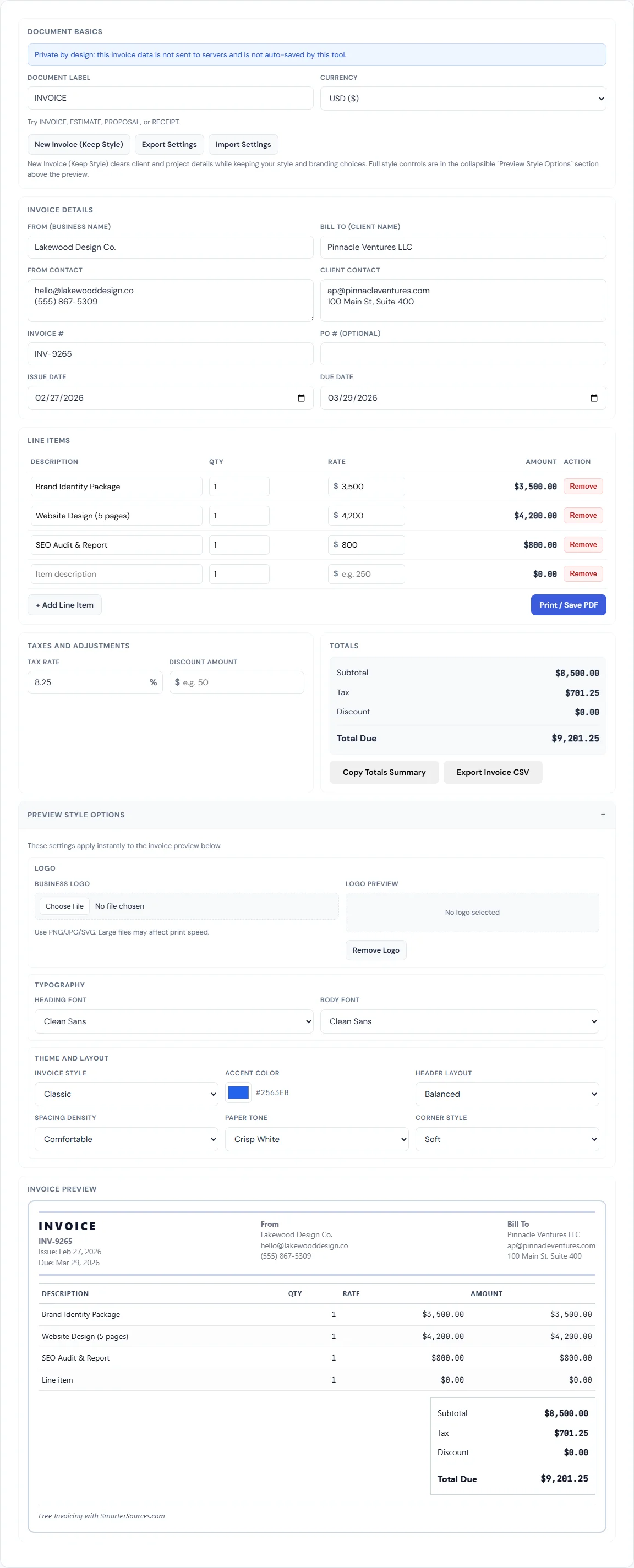
What Every Professional Invoice Needs
An invoice is a payment request, but it is also a legal document. Missing a key detail can delay payment, create confusion during tax season, or make your business look disorganized. Here is what to include every time:
The Non-Negotiables
- Your business name and contact info — the client needs to know who is billing them and how to reach you if they have questions
- Client name and contact info — ensures the invoice is routed to the right person or department
- Invoice number — a unique identifier for tracking. Sequential numbers (INV-001, INV-002) are the simplest approach
- Issue date — when the invoice was sent
- Due date — when payment is expected. Net 30 (30 days from issue) is the most common term
- Itemized line items — each service or product with a description, quantity, rate, and calculated amount
- Total due — the final amount after tax and any discounts
Worth Including
- PO number — if the client issued a purchase order, referencing it speeds up approval
- Tax rate — required in most jurisdictions and helps clients verify the math
- Payment instructions — bank transfer details, PayPal address, or a note like "Pay via Stripe link in email"
- Your logo — adds professionalism and visual recognition
Skip These
- Vague descriptions — "consulting" tells the client nothing. "Brand strategy workshop (3 hours)" tells them everything
- Handwritten notes — they look unprofessional and are hard to reference later
- Multiple fonts and colors — keep the design clean. One accent color and consistent typography is all you need
How to Build an Invoice in 3 Minutes
The SmarterSources Invoice Generator creates clean, itemized invoices that you can print or save as PDF. Everything runs in your browser — no account, no subscription, no data sent to a server. Here is how to use it:
Step 1: Enter Your Details
Fill in your business name and contact info in the "From" fields, and your client's details in the "Bill To" fields. The invoice number is auto-generated (INV-XXXX format), but you can change it to match your own numbering system. Issue date defaults to today, and due date defaults to 30 days out.
Step 2: Add Line Items
Each line item has a description, quantity, and rate. The amount calculates automatically. Click + Add Line Item for each service or product. Be specific with descriptions — "Website redesign (homepage + 4 inner pages)" is better than "web design" because it sets clear expectations and reduces payment disputes.
Step 3: Apply Tax and Discounts
Enter your tax rate as a percentage. If you are offering a discount, enter the fixed amount. The tool calculates subtotal, tax, discount, and total due automatically. All numbers update in real time as you type.
Step 4: Customize the Look
Expand the Preview Style Options panel to access the full design system:
- Upload your logo — PNG, JPG, or SVG. It appears in the invoice header
- Pick an invoice style — Classic (traditional with a double border), Modern (gradient header with shadow effects), Minimal (clean with a dashed border), or Editorial (accent-colored borders with an inline title)
- Set your accent color — match your brand palette
- Choose fonts — five options each for headings and body text
- Adjust the layout — Balanced, Split Columns, or Left Focused header arrangements
- Fine-tune details — paper tone (white, ivory, or gray), corner style (soft, square, or rounded), and spacing density
The live preview updates instantly as you change settings, so you see exactly what the printed invoice will look like.
Step 5: Export
You have three export options:
- Print / Save PDF — opens your browser's print dialog. Choose "Save as PDF" for a digital copy, or print a paper version. The tool hides all editing controls automatically, producing a clean, professional output
- Export Invoice CSV — downloads the full invoice data as a CSV file for your records or accounting software
- Copy Totals Summary — copies a plain-text summary (invoice number, subtotal, tax, discount, total) to your clipboard for pasting into an email or chat
Save Your Style, Reuse It Forever
One of the most useful features is the ability to export and import your style settings. Click Export Settings to download a CSV file containing your logo, fonts, colors, accent color, template choice, and business name. When you create your next invoice, click Import Settings to load everything back instantly.
This solves the biggest problem with free invoice tools: having to recreate your branding every time. Set it up once, export the settings file, and every future invoice starts with your design already in place. Click New Invoice (Keep Style) to clear the client and line item fields while keeping all your style choices.
Common Invoicing Mistakes That Delay Payment
Not Setting Clear Payment Terms
If your invoice does not specify when payment is due, the client will pay whenever they get around to it. Always include a due date. Net 30 is standard for most industries. If cash flow is tight, Net 15 or even Net 7 is reasonable for smaller projects. The invoice tool auto-sets the due date to 30 days from today, which you can adjust to match your terms.
Using Vague Line Items
An invoice that says "consulting — $5,000" invites questions. An invoice that says "Brand strategy workshop (3 hours) — $1,500" and "Competitive analysis report — $2,000" and "Logo concept development (3 rounds) — $1,500" gets paid without a phone call. Break your work into specific, recognizable deliverables.
Forgetting to Number Your Invoices
Invoice numbers are not just for organization — they are a legal requirement in many jurisdictions and essential for tax records. Use a consistent format. The tool auto-generates a random INV-XXXX number, but you can use any system: sequential (INV-001), date-based (2026-0227-001), or client-prefixed (ACME-015).
Sending Invoices Late
The longer you wait to invoice after completing work, the longer you wait to get paid. Invoice immediately upon delivery or at agreed-upon milestones. If you are working on a longer project, consider milestone billing (25% at kickoff, 50% at first draft, 25% at delivery) rather than one large invoice at the end.
Not Following Up
According to a study by FreshBooks, 29% of freelancer invoices are paid late. If payment has not arrived by the due date, send a polite reminder. Most late payments are not intentional — invoices get buried in inboxes, forwarded to the wrong department, or simply forgotten. A quick follow-up email with the invoice attached usually resolves it.
Invoice vs. Quote vs. Estimate vs. Receipt
These documents serve different purposes, and using the wrong one can cause confusion:
- Quote / Estimate — sent before work begins. It tells the client what the work will cost. Not a payment request. Use the Quote & Estimate Generator for this
- Invoice — sent after work is completed (or at a milestone). It is a formal payment request with specific amounts due
- Receipt — sent after payment is received. It confirms the transaction. You can use the invoice tool for this by changing the document label to "RECEIPT"
The SmarterSources invoice tool supports all of these. Change the document label field to INVOICE, ESTIMATE, PROPOSAL, RECEIPT, or any custom label you need.
How Much Should You Charge?
If you are unsure about your rates, the Hourly Rate Calculator helps you work backward from your annual income goal, factoring in expenses, taxes, and billable hours. The Markup vs. Margin Calculator is useful if you are reselling products and need to set prices that cover your costs and hit a target profit margin.
Start Invoicing
A professional invoice takes three minutes to create and pays for itself by getting you paid faster. The tool is free, your data stays on your device, and you can save your branding for reuse across every invoice you send.
BLIPP built SmarterSources to replace expensive subscriptions with free, private tools. Every tool runs in your browser — no sign-ups, no limits.