How to Create a Professional Email Signature for Free

You send dozens of emails every day. Every one of them ends with either a polished signature that reinforces who you are — or nothing at all. Most people default to nothing because building an HTML signature feels like it should require a designer, a developer, or a $10/month subscription. It does not.
This guide walks through everything you need to create a professional email signature that works in Gmail, Outlook, Apple Mail, and Thunderbird — for free, in about five minutes.
Want to skip straight to building? The tool is free and takes about 5 minutes.
Create Your Signature →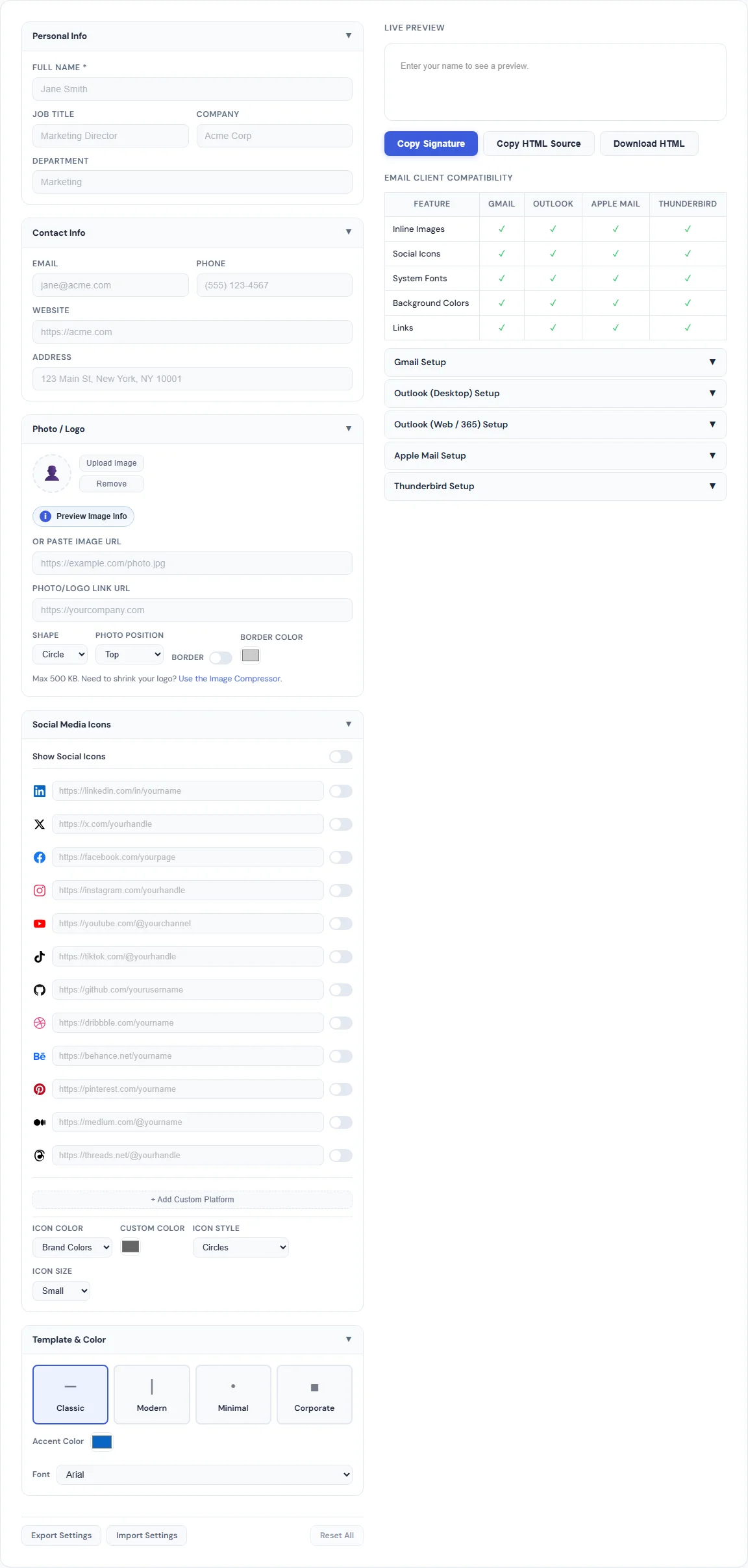
Why Your Email Signature Matters More Than You Think
A 2023 study by Exclaimer found that the average business professional sends over 40 emails per day. That is 40 impressions — per person, per day — where your signature either builds credibility or quietly undermines it.
A good email signature does three things:
- Establishes credibility. Your name, title, and company tell the recipient they are dealing with a real professional, not a random Gmail address.
- Makes you reachable. Phone number, website, and social links give people multiple ways to connect without searching for your contact info.
- Reinforces your brand. Consistent colors, a logo, and a clean layout show attention to detail. It is the cheapest marketing you will ever do.
If you are a freelancer, small business owner, job seeker, or anyone who communicates by email, a professional signature is not optional — it is expected.
What to Include in Your Signature
Keep it focused. A signature that tries to say everything ends up saying nothing. Here is what actually matters:
The Essentials
- Full name — how you want to be addressed professionally
- Job title — tells the recipient your role at a glance
- Company name — adds context and credibility
- Phone number — especially important for sales, consulting, and client work
- Email address — seems redundant, but makes it easy to copy/paste your contact info
Worth Adding
- Website URL — drives traffic to your site with zero effort
- Social media links — LinkedIn is almost always relevant; add others based on your industry
- Photo or company logo — adds a human touch and visual recognition
Skip These
- Inspirational quotes — they clutter the signature and rarely land well in professional contexts
- Legal disclaimers — unless your compliance department requires it, they are noise
- Animated GIFs — most email clients strip them, and they increase email size significantly
- Too many social icons — pick 2–4 platforms that are actually relevant to your audience
How to Build Your Signature in 5 Minutes
The SmarterSources Email Signature Creator generates a clean, HTML-formatted signature that you can copy directly into any email client. Here is how to use it:
Step 1: Fill in Your Info
Enter your name, title, company, phone, email, and website. You do not need to fill in every field — the signature automatically hides any field you leave blank, so it stays clean regardless of how much detail you include.
Step 2: Add a Photo or Logo
Upload a headshot or company logo. You can choose between circle, square, or oval shapes and optionally add a colored border. For the most reliable results across email clients, use a publicly hosted image URL (like one from your website) rather than a local file upload.
Step 3: Configure Social Icons
Toggle on the platforms you use — LinkedIn, Twitter/X, Instagram, Facebook, YouTube, GitHub, TikTok, and more. Enter your profile URL for each. You can customize the icon style (circles, rounded squares, or bare icons), size, and color mode (brand colors, custom color, or monochrome).
Step 4: Pick a Template
Choose from four layouts:
- Classic — horizontal divider, photo on the left, clean and traditional
- Modern — vertical accent bar, bold name treatment, contemporary feel
- Minimal — compact single-column layout, no frills
- Corporate — structured with a color accent bar, professional and formal
Set your accent color to match your brand, and choose a font that fits your style.
Step 5: Copy and Paste
Click Copy Signature and paste it directly into your email client's signature settings. The tool copies the formatted signature (not raw HTML), so what you see in the preview is exactly what will appear in your emails.
Setting Up Your Signature by Email Client
The paste step is slightly different depending on which email client you use. Here are the quick instructions for each:
Gmail
- Open Gmail and click the gear icon, then See all settings.
- Scroll to Signature under the General tab.
- Click + Create new and give it a name.
- Click inside the signature editor and paste (Ctrl+V or Cmd+V).
- Scroll to the bottom and click Save Changes.
Outlook (Desktop)
- Go to File → Options → Mail → Signatures.
- Click New, name your signature, and click the editor area.
- Paste with Ctrl+V.
- Select it as your default for new messages and/or replies.
Outlook (Web / Microsoft 365)
- Click the gear icon (Settings).
- Go to Mail → Compose and reply.
- Click inside the Email signature editor and paste.
- Click Save.
Apple Mail
- Go to Mail → Settings → Signatures.
- Select your email account and click the + button.
- Click in the right preview pane and paste with Cmd+V.
- Close the settings window — changes save automatically.
Common Mistakes to Avoid
Using an Image-Only Signature
Some people create their signature as a single image file. This looks great in theory, but most email clients block images by default. Your recipient sees a blank box with a "download images" prompt instead of your contact info. Always use real HTML text for your name, title, and contact details.
Forgetting Mobile
Over 60% of emails are opened on mobile devices. A signature with tiny text, oversized images, or complex multi-column layouts will look broken on phones. The templates in the SmarterSources tool are designed with table-based layouts and inline styles — the only approach that renders consistently across desktop and mobile email clients.
Including Too Much Information
Your signature is not your resume. Stick to your name, title, company, one or two contact methods, and your most relevant social links. If it takes more than two lines to scan, you have included too much.
Using Non-Standard Fonts
Email clients only support system fonts. If you specify a custom web font, it will silently fall back to a default — usually Times New Roman, which is probably not what you intended. Stick with email-safe fonts like Arial, Verdana, Tahoma, or Georgia.
Why Free Signature Tools Often Fall Short
Most "free" email signature generators have a catch. Some add a watermark or branded link at the bottom. Others limit you to one template unless you upgrade. A few require you to create an account just to see the output.
The SmarterSources Email Signature Creator has none of those limitations. There is no watermark, no sign-up, no premium tier, and no limit on how many signatures you create. Everything runs in your browser, your data stays on your device, and you can export and import your settings as CSV to back them up or transfer between devices.
Make It Yours
A professional email signature takes five minutes to set up and pays for itself with every email you send. Whether you are a freelancer trying to look established, a founder building a brand, or an employee who just wants clean contact info at the bottom of every message — the tool is free, the setup is fast, and the result is immediate.
BLIPP built SmarterSources to replace expensive subscriptions with free, private tools. Every tool runs in your browser — no sign-ups, no limits.