How to Make a QR Code for Anything — Complete Guide

QR codes are everywhere. Restaurant menus, business cards, concert tickets, product packaging, real estate signs, classroom handouts — those small black-and-white squares have become the universal bridge between the physical world and the digital one. Point your phone camera at one and you are instantly connected to a website, a Wi-Fi network, a contact card, or a payment form.
The technology is not new. QR codes were invented in 1994 by Masahiro Hara at Denso Wave, a subsidiary of Toyota, to track automotive parts during manufacturing. The "QR" stands for Quick Response — a nod to the format's ability to be read at high speed. For years they remained a niche technology, mostly used in Japanese logistics and manufacturing. Then the COVID-19 pandemic changed everything. Restaurants needed touchless menus. Event organizers needed contactless check-in. Businesses needed a way to move information without handing someone a piece of paper. QR codes went from overlooked curiosity to mainstream utility almost overnight.
The good news is that creating your own QR code is straightforward, free, and takes less than a minute. Whether you need one for your business card, your Wi-Fi password, a product label, or a personal project, this guide covers everything you need to know — how QR codes work, what types you can create, and how to make one right now.
Ready to create a QR code? No sign-up, no watermark, no limits.
Make a QR Code Free →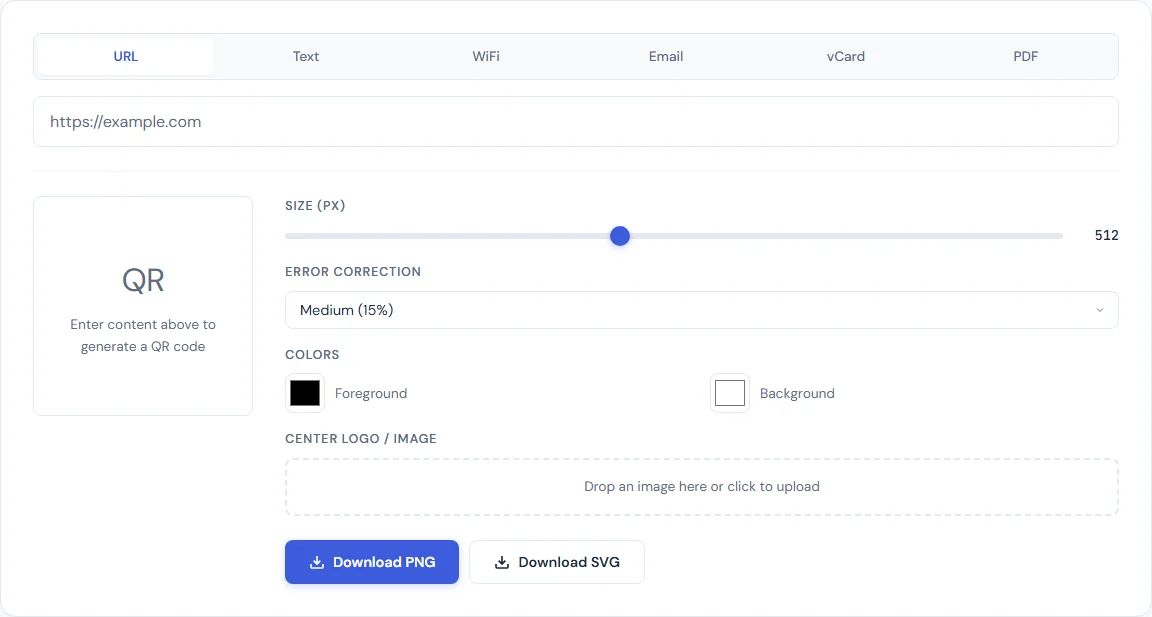
How QR Codes Work
A QR code is a two-dimensional barcode that stores data in a grid of black and white modules (squares). Unlike a traditional barcode that encodes data in one direction, a QR code encodes data both horizontally and vertically, which allows it to hold significantly more information in a smaller space.
When you scan a QR code, your phone's camera detects the three large square markers in the corners — called finder patterns — which tell the scanner the code's orientation and boundaries. The scanner then reads the data modules, decodes the binary pattern, and interprets the result based on the encoding mode (numeric, alphanumeric, byte, or kanji).
One of the most important features of QR codes is error correction. Every QR code includes redundant data that allows it to be read even if part of the code is damaged, dirty, or obscured. There are four error correction levels:
- Level L (Low) — recovers up to 7% data loss. Produces the smallest, simplest codes.
- Level M (Medium) — recovers up to 15% data loss. The default for most use cases.
- Level Q (Quartile) — recovers up to 25% data loss. Good for printed materials that may get scuffed.
- Level H (High) — recovers up to 30% data loss. Best for harsh environments or codes with a logo overlaid on the center.
Higher error correction means a denser code (more modules), but it also means greater resilience. For most digital uses, Level M is sufficient. For anything printed — especially on packaging, signage, or materials that will be handled — Level Q or H is worth the tradeoff.
Types of QR Codes You Can Create
QR codes are not limited to URLs. The data encoded in the code determines what happens when someone scans it. Here are the most common types:
URL
The most common type. The QR code contains a web address, and scanning it opens that URL in the default browser. Use this for linking to websites, landing pages, online menus, app download pages, or any web resource.
Wi-Fi
Encodes your network name (SSID), password, and encryption type (WPA/WPA2/WEP). When scanned, the phone offers to connect to the network automatically — no typing the password. This is ideal for guest networks at offices, restaurants, Airbnb properties, or your home.
vCard (Contact Information)
Stores a complete digital business card: name, phone number, email, company, title, website, and address. Scanning it prompts the user to save the contact directly to their phone. This is far more practical than handing someone a paper card they will lose.
Pre-fills the recipient address, subject line, and message body. When scanned, the user's default email app opens with everything already filled in — they just hit send. Useful for feedback forms, support requests, or RSVP confirmations.
Phone Number
Encodes a phone number. Scanning initiates a call or presents the option to dial. Common on business cards, service vehicles, and customer support materials.
SMS
Pre-fills a text message with a phone number and optional message body. Useful for opt-in marketing ("Text JOIN to 55555") or event confirmations.
Plain Text
Encodes any arbitrary text. The scanner simply displays the text on screen. This is flexible but less actionable than the other types — best for short messages, serial numbers, or reference codes.
Step-by-Step: Creating a QR Code
The SmarterSources QR Code Generator supports all the types listed above. Here is how to create one:
1. Select the QR Code Type
Choose what kind of data you want to encode: URL, Wi-Fi, vCard, Email, Phone, SMS, or Plain Text. The input fields will change based on your selection.
2. Enter Your Data
Fill in the required fields. For a URL, paste your web address. For Wi-Fi, enter the network name and password. For a vCard, fill in the contact details you want to share. The tool validates your input and shows you the raw data string that will be encoded.
3. Choose the Size and Error Correction
Set the output size (the tool supports multiple resolutions) and select your error correction level. For digital sharing, Level M is fine. For anything that will be printed, go with Level Q or H.
4. Download as PNG or SVG
Click to generate, then download your QR code. PNG is best for digital use — social media, websites, email. SVG is best for print — it scales to any size without losing quality, so it looks sharp on a business card and equally sharp on a billboard.
Where to Use QR Codes
Once you know how to make them, the applications are nearly limitless. Here are the most practical uses:
- Business cards. Add a QR code that links to your vCard or LinkedIn profile. Recipients scan instead of manually typing your info.
- Restaurant menus. Link to a digital menu that you can update without reprinting. This became standard practice during the pandemic and most restaurants have kept it.
- Product packaging. Link to assembly instructions, warranty registration, nutritional info, or support pages.
- Event invitations. Encode the event details (date, location, RSVP link) so guests can save them directly to their calendar.
- Real estate signs. Link to the full property listing, virtual tour, or agent contact page. Buyers get details immediately without writing down an MLS number.
- Classroom materials. Teachers use QR codes on worksheets to link to supplementary videos, quizzes, or interactive resources.
- Wi-Fi sharing. Print a Wi-Fi QR code and frame it near your front door, office reception desk, or Airbnb rental. Guests connect in seconds.
QR Code Best Practices
A QR code that does not scan is worse than no QR code at all. Follow these guidelines to make sure yours works every time:
- Always test before printing. Scan with at least two different phones (iOS and Android) before committing to print. What works on your phone may not work on someone else's.
- Maintain adequate size. For close-range scanning (business cards, menus, handouts), the QR code should be at least 2 cm (about 0.8 inches) on each side. For distance scanning (posters, banners, signs), increase the size proportionally — a general rule is 1 cm of QR code per 10 cm of scanning distance.
- Ensure sufficient contrast. Dark modules on a light background is the standard. You can use colors other than black and white, but the dark elements must be significantly darker than the light elements. Avoid low-contrast combinations like light gray on white or pastel on pastel.
- Do not over-customize colors. While colored QR codes look appealing, aggressive color changes can make them unscannable. If you change the foreground color, keep it dark. Never invert the code (light modules on dark background) — many scanners cannot read inverted codes.
- Use high error correction for print. Printed codes get scratched, folded, and exposed to sunlight. Level Q or H gives you a safety margin that Level L does not.
- Keep URLs short. Shorter URLs produce simpler QR codes with fewer modules, which are easier to scan from a distance and at smaller sizes. If your URL is long, consider using a URL shortener before encoding it.
Static vs Dynamic QR Codes
There are two fundamentally different approaches to QR codes, and understanding the distinction matters before you create one.
Static QR Codes
A static QR code contains the actual data directly in the code itself. When you encode a URL, the full URL is stored in the pattern of modules. The code does not depend on any external service to function. It will work forever, even if the tool that created it disappears tomorrow. There is no tracking, no analytics, and no way to change where it points after creation.
Dynamic QR Codes
A dynamic QR code contains a short redirect URL that points to a third-party service. When someone scans it, they hit the redirect server first, which then forwards them to your actual destination. This allows the owner to change the destination URL without reprinting the code, and the redirect service can track scan counts, locations, and devices. The tradeoff is dependency: if the redirect service goes down, changes its terms, or starts charging, your QR code stops working.
Which Should You Use?
For most personal and small business use cases, static codes are the better choice. They are simpler, more reliable, and do not depend on a third party. The SmarterSources QR Code Generator creates static codes — your data is encoded directly, nothing passes through our servers, and the resulting code works independently forever.
Dynamic codes make sense when you need to update the destination after printing (like a product recall notice) or when scan analytics are critical to your campaign. But they typically require a paid subscription, and you are trusting a third-party service with the longevity of every code you print.
Frequently Asked Questions
Do QR codes expire?
Static QR codes never expire. The data is encoded directly in the image, so the code will work as long as the destination it points to exists. If you created a QR code for a URL and that URL stays live, the code will work in ten years the same as it does today. Dynamic QR codes, which rely on a redirect service, can expire if the service shuts down or if your subscription lapses.
What is the maximum amount of data a QR code can hold?
A single QR code can store up to 7,089 numeric characters, 4,296 alphanumeric characters, or 2,953 bytes of binary data. In practice, you should keep the data as short as possible. More data means more modules, which means the code needs to be printed larger to remain scannable. For URLs, this is rarely an issue — most web addresses are well under 200 characters.
Can I customize the colors of my QR code?
Yes, but with caution. The foreground (module) color should always be dark and the background should always be light. You can use dark blue, dark green, or dark red instead of black, and off-white or light gray instead of pure white. Avoid inverting the colors (light on dark) or using low-contrast combinations, as many scanners will fail to read them.
Should I download PNG or SVG?
Use PNG for digital purposes — sharing on social media, embedding in emails, adding to websites. Use SVG for print — it is a vector format that scales infinitely without losing quality, so it looks crisp at any size from a small business card to a large banner.
Can I put a logo in the center of a QR code?
Technically yes, if the QR code uses high error correction (Level H). The logo covers some of the data modules, but the error correction algorithm compensates for the loss. However, this reduces the effective error correction available for actual damage, so a code with a logo is more fragile than one without. If you add a logo, always test the code thoroughly and keep the logo small (no more than 10-15% of the total code area).
BLIPP built SmarterSources to replace expensive subscriptions with free, private tools. Every tool runs in your browser — no sign-ups, no limits.